



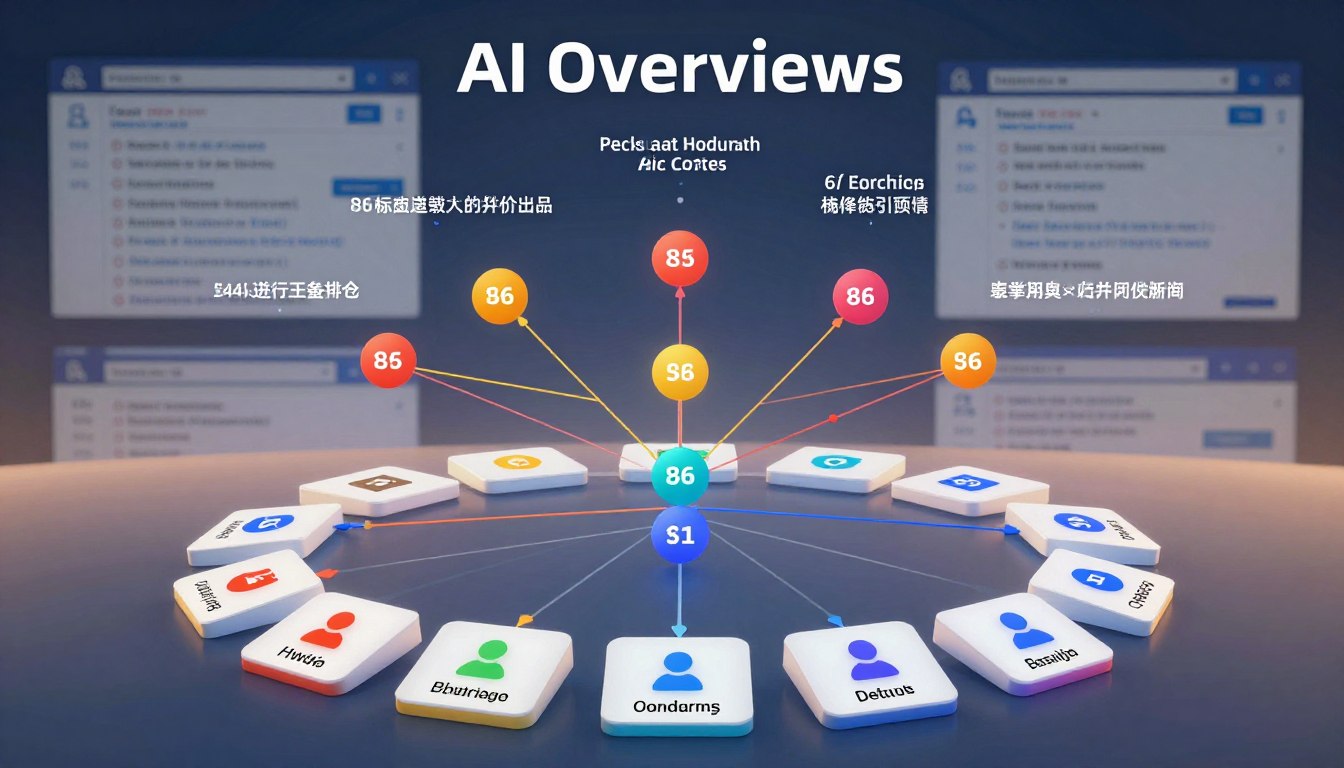



Google AI Mode is an AI-first search mode designed to handle complex questions beyond a standard search. It offers deeper conversational threads, multimodal input (text, voice, images), and linked web sources for follow-up exploration.
This guide explains what the mode does, where it is available in India, and how to access it on the web and in the app. You will learn practical tips for better results, including how to ask follow-up questions and validate responses with sources.
The change reflects a shift from simple information to actionable intelligence across search. Unlike brief overviews that summarize a page, this mode aims for richer exploration with continuity through your session history when enabled.
Power users and curious people will find value in conversational depth, multimodal inputs, and linked results. Note that responses can err; the article shows ways to confirm answers using traditional google search and source checks.
Key Takeaways
- The section defines the new search mode and its core purpose.
- You’ll learn availability and how to access it on web and app in India.
- It explains the shift from information to intelligence in search.
- The mode goes beyond simple overviews by offering follow-up links and history.
- Expect conversational depth, multimodal inputs, and continuity for users.
- Responses can be flawed; validation via sources and standard search is advised.
What Google AI Mode Is and Why It Changes Google Search
What used to be a list of links now aims to deliver structured, task-ready guidance.
AI Mode expands what AI overviews can do by offering deeper, iterative exploration. Power users gain a conversational flow that keeps context, so you can ask follow-up questions without restarting a new query.
AI Overviews vs. the new mode
Overviews summarize and point you to sources. The dedicated mode adds advanced reasoning, multimodal inputs, and longer-threaded replies.
“Longer, more nuanced queries let the system synthesize multiple sources and suggest next steps.”
| Feature | Overviews | Dedicated mode |
|---|---|---|
| Depth | Summary-level | Multi-step synthesis |
| Interaction | Single query | Conversational, follow-up questions |
| Verification | Links to pages | Prominent web links plus cited synthesis |
| Best for | Quick facts | Comparisons, planning, multi-constraint decisions |
Prefer the new mode for research, planning, or multi-step tasks. Use classic search for quick navigational queries to get faster results.
Google AI Mode Availability in India and Supported Languages
Availability varies by account and app version, so not every user sees the same features at once.
What “available” means: The feature is listed for India, but a staged rollout means the entry point and UI can appear differently by device, account, or app build. Two users in the same neighborhood might see different layouts during rollout.

Language support for Indian users
The search experience supports english plus major Indian languages. Supported languages include Hindi, Bengali, Tamil, Telugu, Marathi, Kannada, Malayalam, and Urdu.
Account and age requirements
To access the new mode search features you generally need to be signed in to a personal account you control. Managed or supervised accounts can limit visibility.
- Search Labs experiments are often open to users 13+.
- Some personalization and advanced features require users 18+ in certain regions.
Settings that improve continuity
Enable Web & App Activity and search history to let the mode remember past searches and resume context. Without those settings you can still run queries, but history continuity is disabled.
Notes for Workspace and supervised accounts
Workspace admins can restrict history and personalization. Parents can manage supervised accounts with Family Link, which may block or limit the mode search experience.
| Factor | What to expect | How it affects users |
|---|---|---|
| Rollout | Staged, per account/device | UI and features may appear later for some users |
| Languages | English + major Indian languages | Better results in local languages for many queries |
| Account type | Personal vs managed | Managed accounts may lose access to history and personalization |
| Privacy settings | Web & App Activity, search history | Enable to retain context and links across searches |
How to Access AI Mode on Web and the Google App
You can reach the enhanced search experience in multiple ways, depending on your device and account.
Using google.com/ai for direct entry
Quickest option: Type google.com/ai in your browser to land straight in the conversational interface. This direct link opens the “Ask anything” prompt so you can ask question and start follow-ups right away.
From the regular search and the search bar
Enter a query on google search via the search bar. If the new tab appears, tap the dedicated tab to switch into the conversational mode.
From the Google app home screen
Open the app and tap the AI tab on the home screen when visible. Placement varies during rollout, so check the top bar or the home feed.
“If you don’t see the tab, update the app, sign in, and try again.”
- Update the app to the latest version.
- Confirm you are signed in to a personal account.
- Look for the AI tab near the search bar; it may roll out per account.
Practical note: Both paths lead to the same interface, but starting at google.com/ai gives a clean session. Entering from classic search may carry more local context. Switching back to classic results is simple and optional.
How to Use Google AI Mode to Ask Better Questions and Get Better Results
Start with your goal, add limits, then ask for comparisons. This simple prompt method improves clarity.
Text input: Type into the “Ask anything” bar. State your goal, add constraints (budget, city in India, timeline), and ask for two or three options. Refine in the same thread rather than starting a new search.
Voice searches: Tap the microphone and speak naturally. Then ask a follow-up to confirm specifics like price or availability.
Using images and follow-ups
Use Lens to add images for multimodal context—identify products, translate text, or diagnose issues from a photo. After the image upload, continue the conversation with follow-up questions to narrow results.
“Ask for assumptions, request sources, and probe edge cases when accuracy matters.”
- Ask follow-up questions that request assumptions and sources.
- Compare mode answers with classic search results for high-stakes queries.
- Enable history (Web & App Activity) to pick up where you left off.
| Action | Quick tip |
|---|---|
| Ask question | Start with goal + constraints |
| Ask follow-up | Request sources and edge cases |
| Switch results | Compare mode and classic search results |
How AI Mode Works Under the Hood: Query Fan-Out, Reasoning, and Web Links
The system fans out a question, runs focused searches in parallel, and then synthesizes what it finds.
Query fan-out explained: A single user query is split into subtopics. For example, “best places to visit in Kerala in monsoon” becomes separate probes for weather, safety, routes, hotel availability, and local activities. Those sub-queries run at once to collect broader information quickly.
Why this goes deeper than a single search
Parallel searches widen coverage and let the system compare angles concurrently. That produces more nuanced results than a single lookup that focuses on one page or signal.
Sources, links, and low-confidence behavior
Responses are tied to high-quality web sources and clickable links so you can verify claims. When confidence is low, the mode may show only links rather than a synthesized response. This acts as a quality safeguard, not a failure.
Advanced reasoning and multimodality in practice
Advanced reasoning helps with multi-step comparisons and constraint-based planning. Multimodality combines text, voice, and images so the system can interpret context beyond keywords.
“Always check cited sources and validate time-sensitive or safety-related facts.”
Key AI Mode Features to Know: Deep Search, Live Help, Agentic Tasks, and Shopping
Learn which tools speed up deep research, live camera help, agent-assisted bookings, and visual shopping.
Deep Search is a research-grade feature that can run hundreds of searches and compile an expert-level, fully cited report in minutes. Use it for complex topics where you would otherwise open many tabs. The report arrives with clear web links so you can verify sources quickly.

Search Live with camera
This live capability lets the search tool “see what you see” and answer in real time. It is handy for troubleshooting, step-by-step learning, or identifying items at a store.
Expect back-and-forth guidance and links to resources as the camera feed clarifies the issue.
Agentic capabilities
The system can evaluate options and prefill forms for tickets, restaurant reservations, and local appointments. Partners include Ticketmaster, StubHub, Resy, and Vagaro.
Control-first: you review choices and confirm any final transaction, including assisted checkout if you set criteria like “when the price is right.”
AI shopping partner and custom data visuals
The shopping partner helps narrow products, offers virtual try-on from a single image, and can enable assisted checkout via Google Pay under user oversight.
For data-heavy queries, the model can produce custom charts and graphs for sports or finance use cases. These visuals make it easier to compare metrics without manual spreadsheet work.
| Feature | What it does | How it changes search |
|---|---|---|
| Deep Search | Hundreds of searches; fully cited report | Fewer tabs; faster expert summaries |
| Search Live | Real-time camera-based help | Guided fixes and instant context |
| Agentic tasks | Evaluate and prefill tickets/reservations | Saves time; user confirms final steps |
| Shopping partner | Discovery, virtual try-on, assisted checkout | Easier discovery and purchase flow |
| Custom charts | Interactive sports and finance graphs | Clearer data comparisons and insights |
“These features turn search into a practical workflow: fewer manual comparisons and structured outputs with source links.”
Personalization, Privacy, and Feedback Controls in AI Mode
Users can opt to add personal signals so responses better match their previous searches and preferences.
Personal context is optional. The mode may use past searches to tailor content. You can also connect apps (starting with Gmail) to add richer context, but only after you opt in.
Manage personalization and connected apps
Turn personalization on or off from Search settings. Changes affect multiple surfaces, not just the mode experience.
If you connect apps, you can disconnect them anytime. Controls are reversible and clear.
Double-check important responses
- Open cited sources and follow links to verify facts.
- Compare answers with classic search results for time-sensitive topics.
- Ask the same question in different ways to spot inconsistencies.
Feedback and history controls
Use thumbs up or thumbs down to rate responses. You can add a category and details; feedback includes the latest query and results to help improve quality.
| Action | Where | Result |
|---|---|---|
| View history | AI Mode history page | See past queries and responses |
| Delete item | History entry | Removed; may persist in My Activity briefly ( |
| Delete all | History settings | Clears mode history; check Search history to remove related entries |
“Connected experiences are opt-in and reversible; treat outputs as assistive content and verify when accuracy matters.”
Conclusion
For readers in India, the new conversational search path offers deeper, task-focused help for complex topics.
Quick recap: this mode turns a single query into a set of focused probes so you get broader, more actionable content. Use the “ask anything” bar, set clear constraints when you ask question, and then refine with follow-up questions to improve accuracy and usefulness.
Always open web links and verify sources against classic search results before acting on important data. Remember core mechanics—query fan-out breaks a topic into subparts, which is why the system covers a topic more fully than one search.
Try a real query at google.com/ai, run two follow-ups, and click one source. That short practice shows the capabilities, highlights useful tools like Deep Search and camera-based live help, and trains you to treat each response as a starting point, not a final answer.